



![Claw Hammer 20oz [Poly/Fibre Handle]](/image.php?filename=pf501.jpg&stockcode=PF501&category=0030&width=150&height=150 "Claw Hammer 20oz [Poly/Fibre Handle]")
Loyalty Reward Points
Posted on 22-06-2015
The eShop Customer Loyalty Points Module rewards customers with loyalty points for each purchase that can then be used as a cash value to discount future purchases.
The eShop Customer Loyalty Points Module rewards customers with loyalty points for each purchase that can then be used as a cash value to discount future purchases.
The eShop Budget Management Module has been designed to be simple to use and maintain with minimal setup time and provides the method of setting and managing the budgets levels for prof.ITplus customer accounts.
OGL Computer is delighted to announce that they donated over £30,000 to local charities, clubs and associations during 2014.
The ‘Buy and Collect’ feature, allows the eShop user to choose a depot (outlet) to pick up their purchased items from.
When ‘Buy and Collect’ is active, the user will be presented with a Google map showing a marker over each depot. Under the map, the depots will be listed in order of distance from the user’s delivery postcode (or billing postcode if it matches the delivery postcode). Radio buttons allow the user to see the nearest five depots, or all of the depots. Distances and estimated time to the collection point is shown against each depot.
The image below shows how ‘Buy and Collect’ presents itself during the checkout process. The Deliver and Collect boxes below (in grey and green respectively) are clickable and will update the checkout page accordingly.
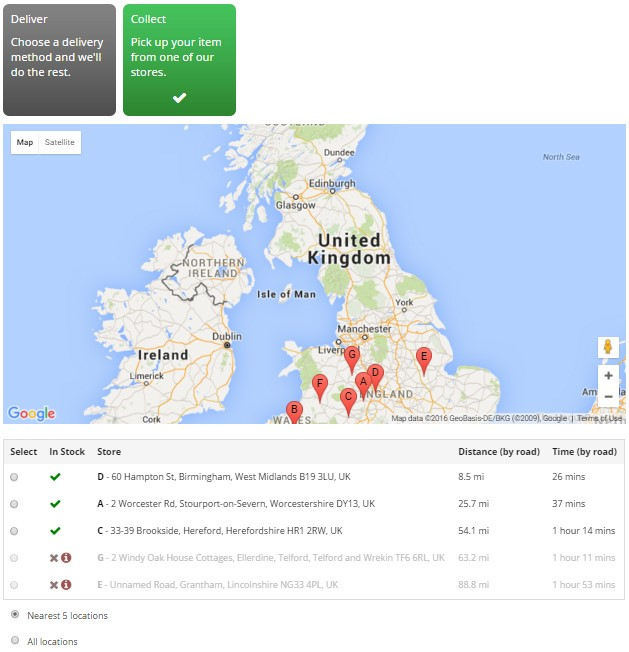
The ‘In Stock’ column, shows either a tick or a cross and an information icon.
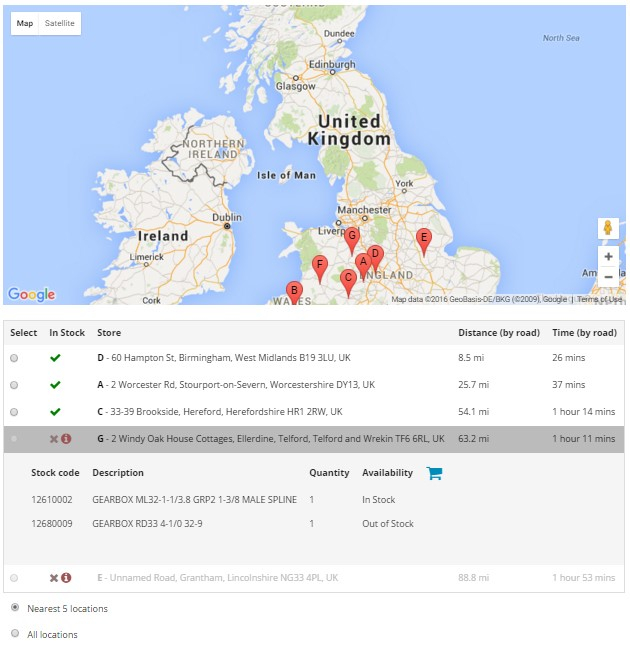
Clicking the information icon, will show users which products are in and out of stock at the selected depot as shown below. The basket icon links to the basket, allowing the user to make changes if required.
Products can be set to either collection only or delivery only. If there’s a mixture of products in the basket and some are set to collection only and some set to delivery only, the user will not be able to proceed through the checkout.
A customisable message will be displayed, informing the user why they cannot proceed. They will then follow the basket icon link, returning to the checkout basket, allowing the user to make changes if required.
If a user has only collectable items in their basket, they will have delivery options. If they have only deliverable items, they will not receive the option to Buy and Collect.